Help · Clients and free trials

How can we help?

Guides and answers for sending footage, setting your style, reviewing edits, your files and your plan.

Browse by topic

41 answers in 9 topics, with pictures of the real studio.

Nothing matches that. Try another word, or message us.

Getting started

Sign in, set up and find your way around.

#

What is Content Studio?

Your editing team, your projects and your files in one place.

Content Studio is where you work with your Content Bug editing team. You send footage, follow every edit, review drafts with notes pinned to the exact second, approve, download your files and message the team, on any computer or phone.
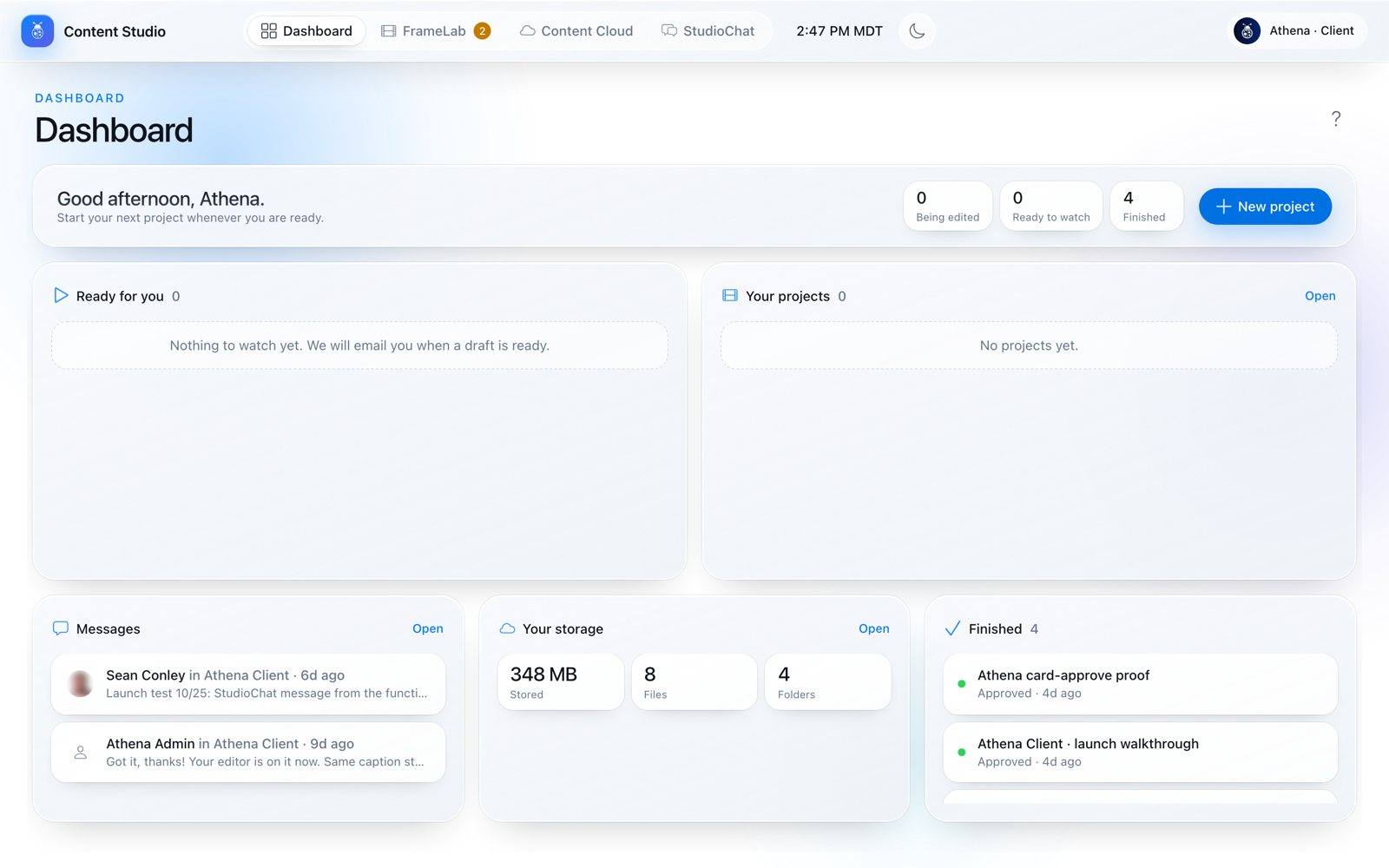
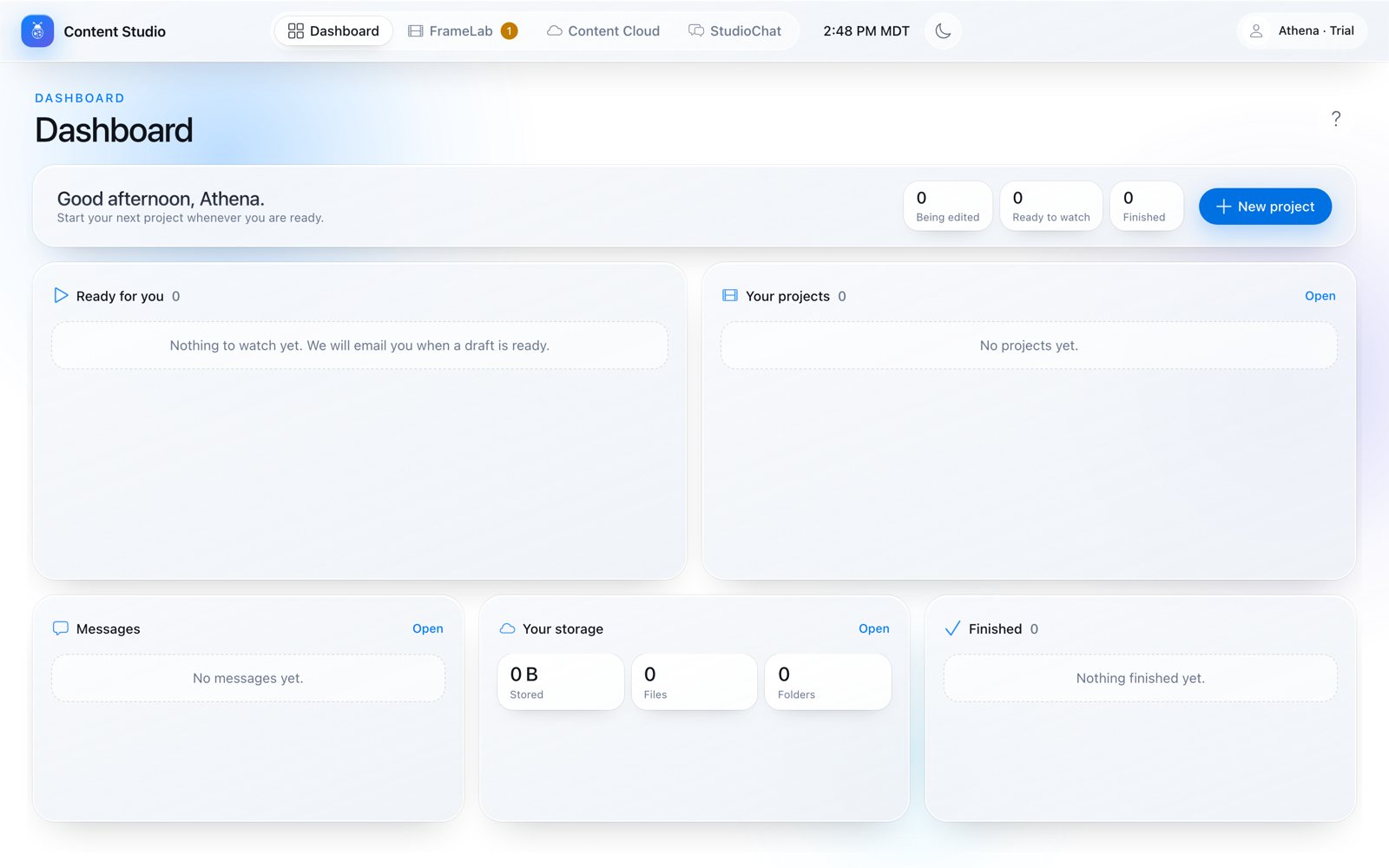
Your Dashboard: what is ready for you, what is being edited, messages, storage and finished edits.
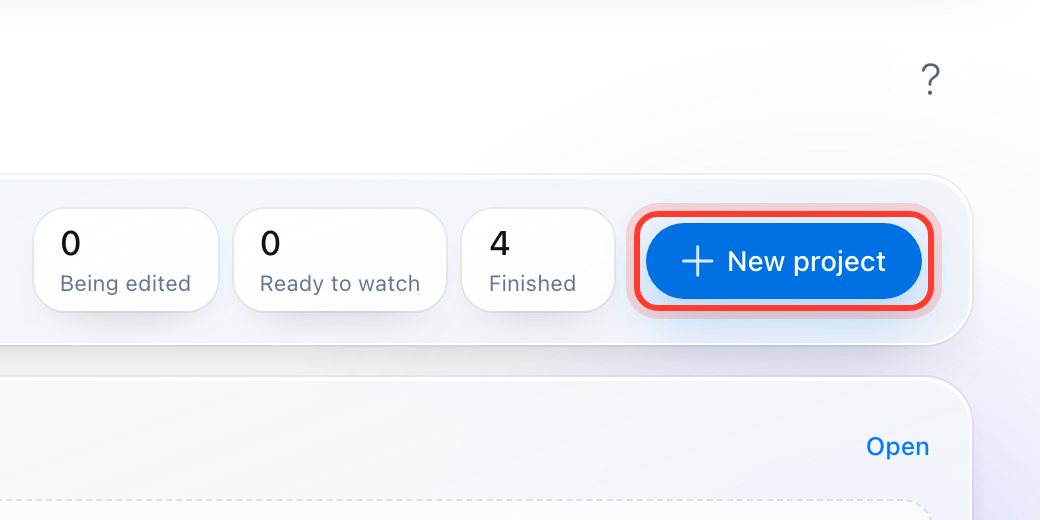
New project starts a request from anywhere on the Dashboard.

Across the top you have four places:

Dashboard
Where you land: Ready for you (drafts to watch), Your projects, Messages, Your storage and Finished, plus New project.
FrameLab
Everything about your edits: My Studio, Projects, Pipeline, Blueprints and Settings.
Content Cloud
All your footage and finished files, in folders you can search.
StudioChat
Your own channel with the team, plus a thread for every project.
#

How do I sign in?

No password: a six-digit code by email.

  1. Go to Content Studio.
  2. Type your work email and press Continue with email.
  3. Open the email "Your Content Studio code". The six-digit code works for 15 minutes. It also comes by text if we have your number.
  4. Type it in and press Sign in.
There is no password to remember. Wrong email? Press Use a different email. New clients get a Welcome to Content Bug email first: press Accept your invite (the link works once, for 7 days).
#

What do I set up the first time?

Three short steps, a few minutes.

The first time you sign in, a short setup walks you through three steps. It saves as you go.

  1. Contact: your name and phone. Your time zone comes from your device, so texts arrive at a sensible hour.
  2. Business: your business name, your website (or tick "I don't have a website yet") and how many videos a month you want. We read your website so your editor knows your brand.
  3. Socials: at least one of your Instagram, TikTok, YouTube, Facebook or LinkedIn profiles, so your editor can match your style.
Adding your social profiles finishes setup. Then New project opens so you can send your first project.
#

What is My Studio?

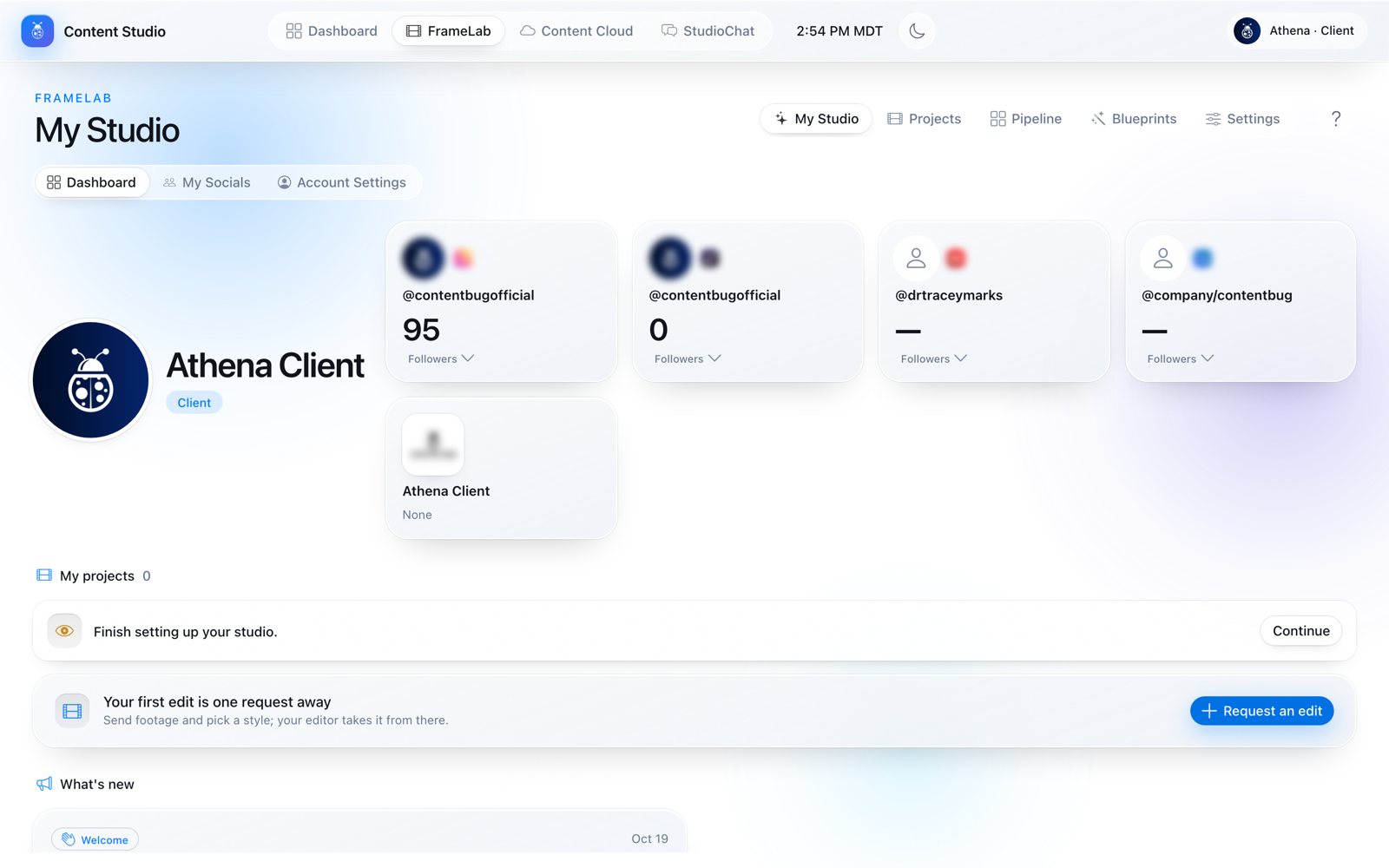
Your profile, socials, projects and account.

FrameLab › My Studio: your profile, social profiles, projects and Request an edit.
Request an edit: your next edit starts here.
Dashboard
Your profile, up to four social cards with followers, My projects, Request an edit and What's new from the team.
My Socials
Every social profile you added, with followers, engagement and how often you post.
Account Settings
Your details, your business, your brand colours and your plan.
#

How does the free trial work?

One free edit, made in the same studio paying clients use.

Press Start your free trial on the sign-in page. It takes three steps:

  1. Create your account: your name and email, the code we email you, then your phone number.
  2. Qualify: a few quick questions about your content, then your main channel (a link or an @handle).
  3. Book your free intro call: pick a time. Your free trial switches on as soon as the call is booked.
A free trial's Dashboard, ready for the first request.
  • 7 days, starting when you book your free intro call.
  • One edit, short form, under 1 minute. The request form sets this for you.
  • The same studio, blueprint builder and review tools as a paying client.
  • Your status shows in My Studio, for example "Trial · 5 days left".
A trial's request: one edit at a time, footage required.
Your free edit starts with Request an edit in My Studio.
Loved your edit? Pick a plan any time on our pricing page. Paying turns your trial into a client account by itself: same login, same projects, same files.

Sending a project

Footage in, style checked, request sent.

#

How do I request an edit?

Footage, blueprint, tier, send.

  1. Open FrameLab and press Request an edit (or New project on your Dashboard).
  2. Drop footage: drag your video files in, or click to choose them. The project is named after the first file; change it under the card.
  3. Blueprint: check the style your editor will follow. Change any answer for this project only, or press Change it in the blueprint builder.
  4. Pick the Edit tier, Short or long, Final length and Format. Add reference videos or notes if they help.
  5. Press Send request. Keep the tab open while it uploads ("Uploading 1 of 3 · 40%"). You see Request sent when it is in.
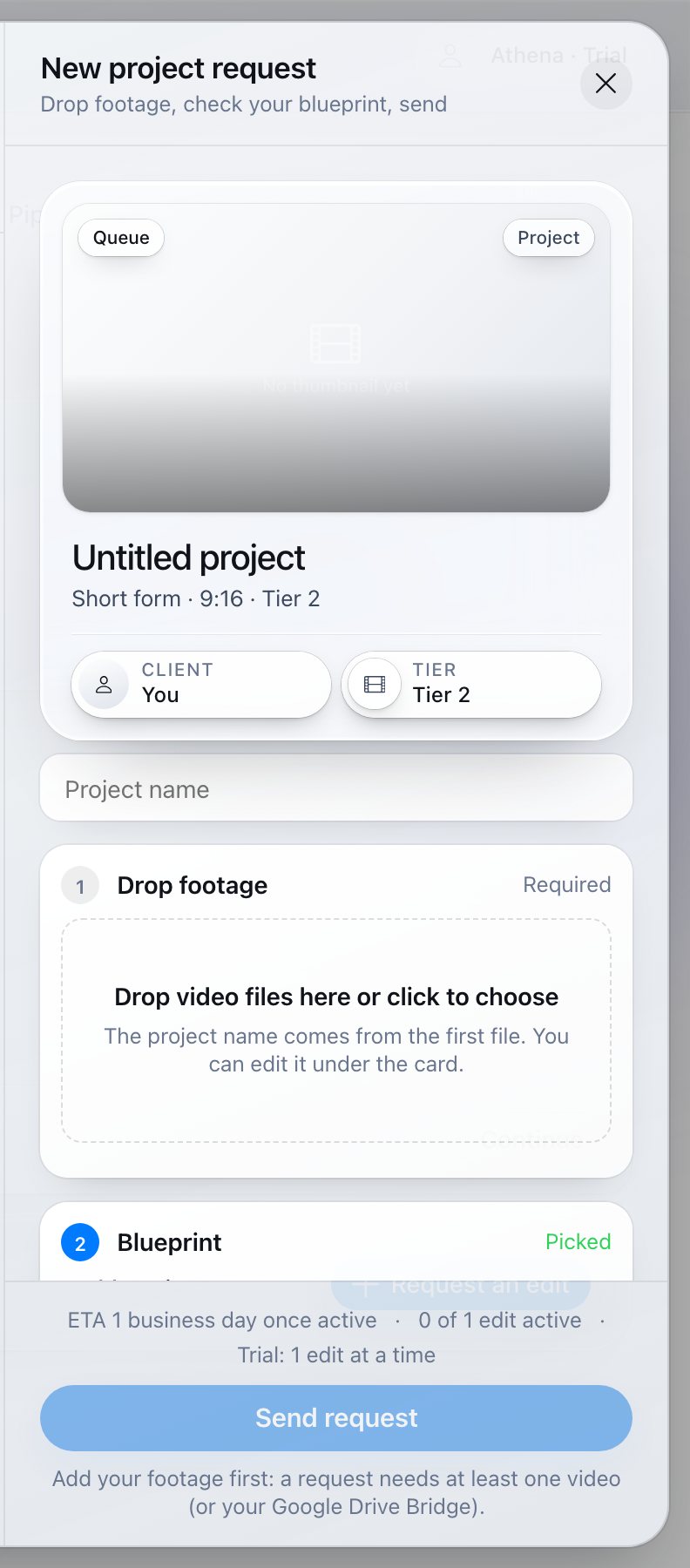
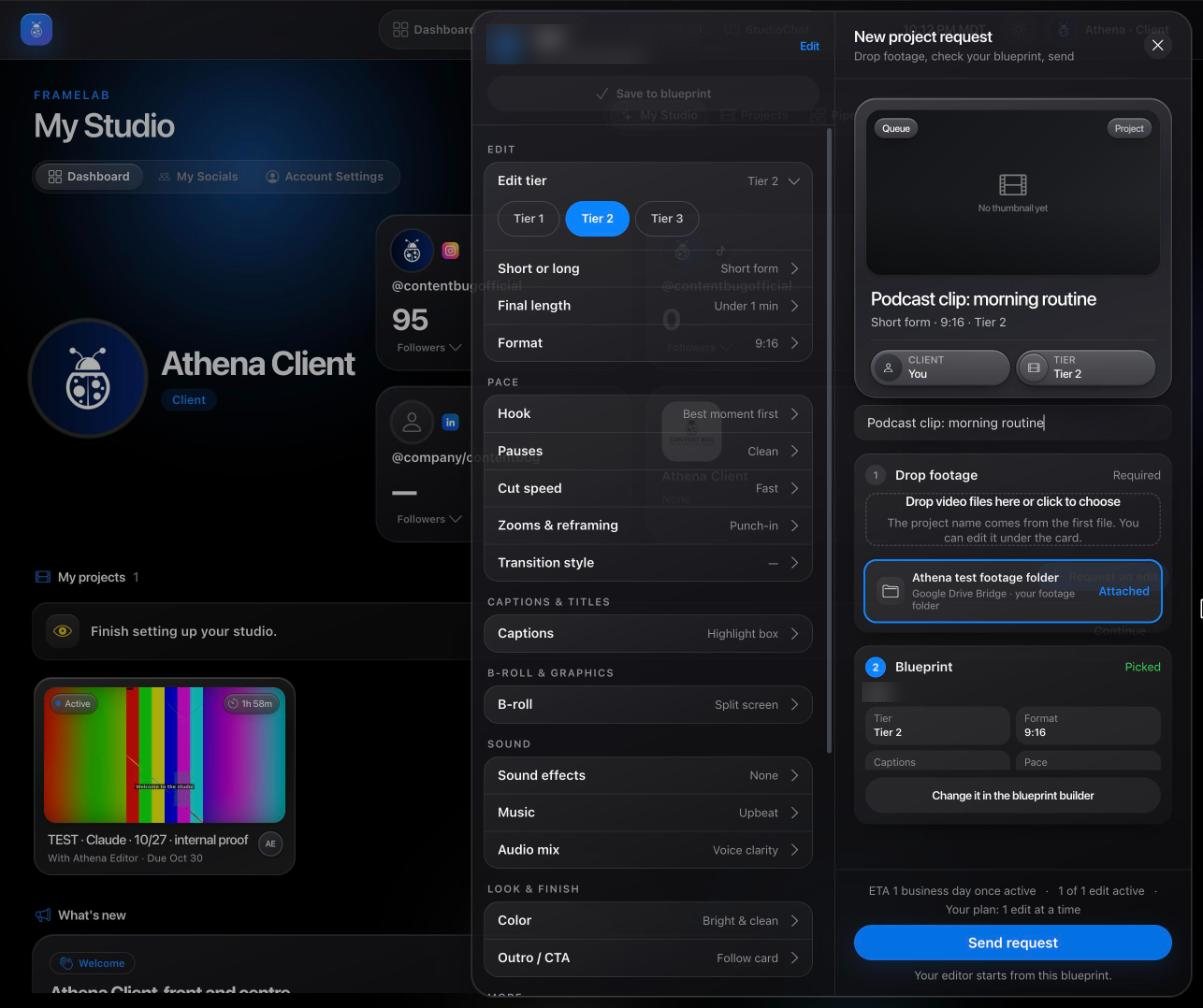
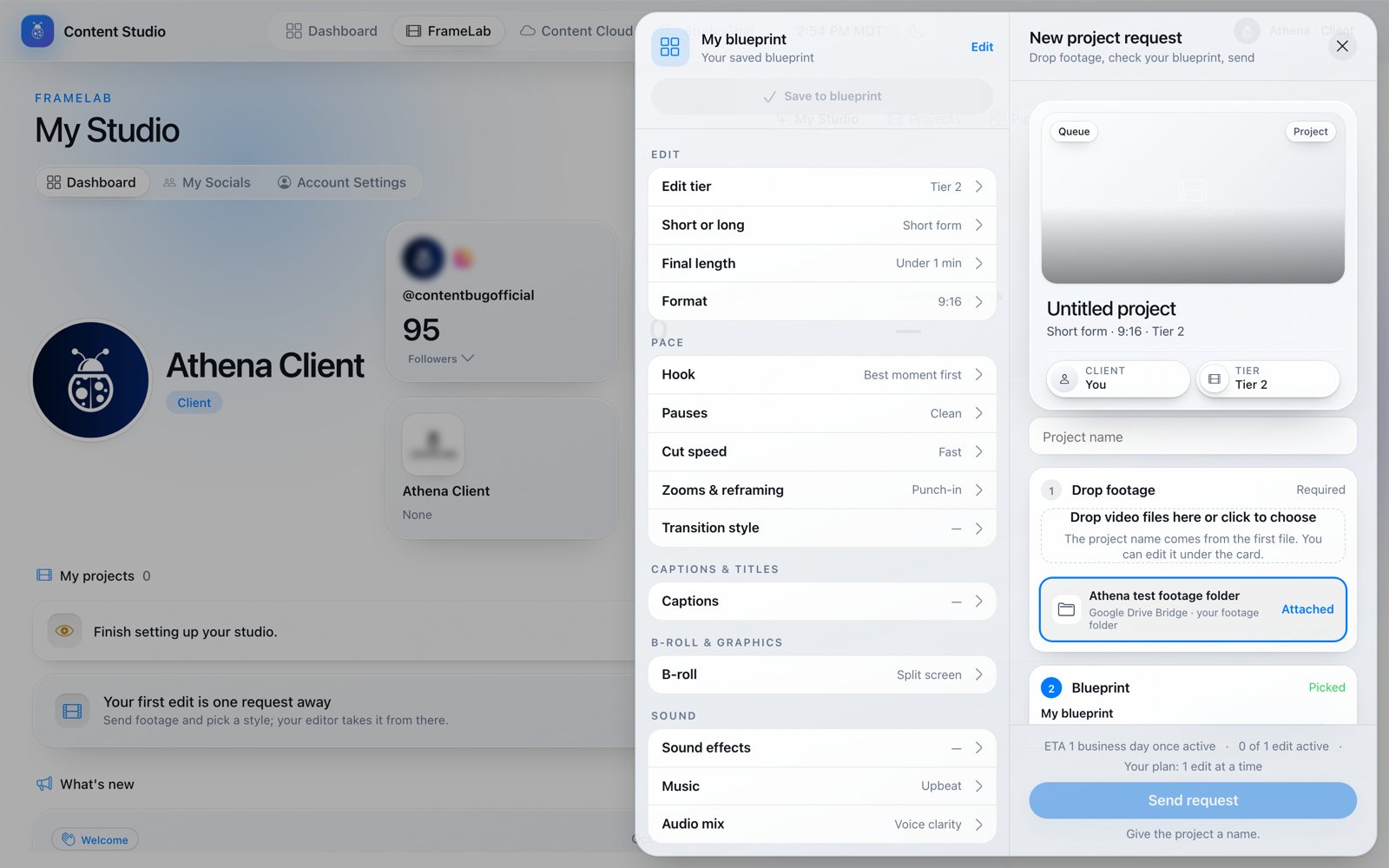
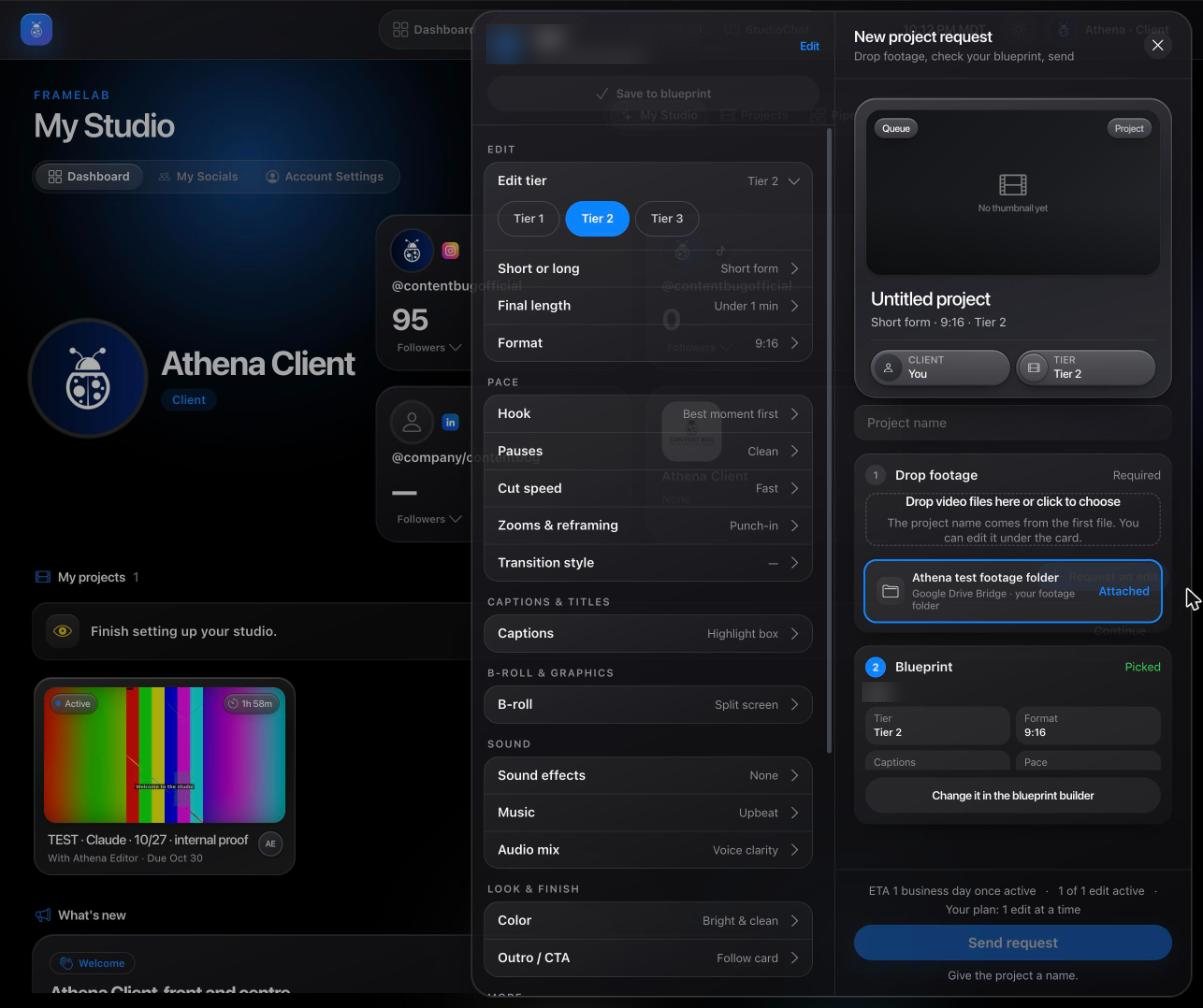
A request ready to send: the card, the footage, the blueprint and the ETA.
Under the form the studio shows your ETA and how many edits you have running, for example "ETA 1 business day once active · 1 of 1 edit active". You get an email and a text the moment we have your request.
#

What footage can I send?

Video files of any size, or your Google Drive folder.

  • Video files: .mp4, .mov, .m4v, .webm, .mkv or .avi. Anything else is left out ("… is not a video and was left out").
  • Big files are fine. Large files upload in parts, three at a time, and each part retries by itself if your connection drops.
  • Your Google Drive footage folder: if you connected one, it shows as "Google Drive Bridge · your footage folder". Press Use it.
  • Sending again? Files that already arrived are not uploaded twice.
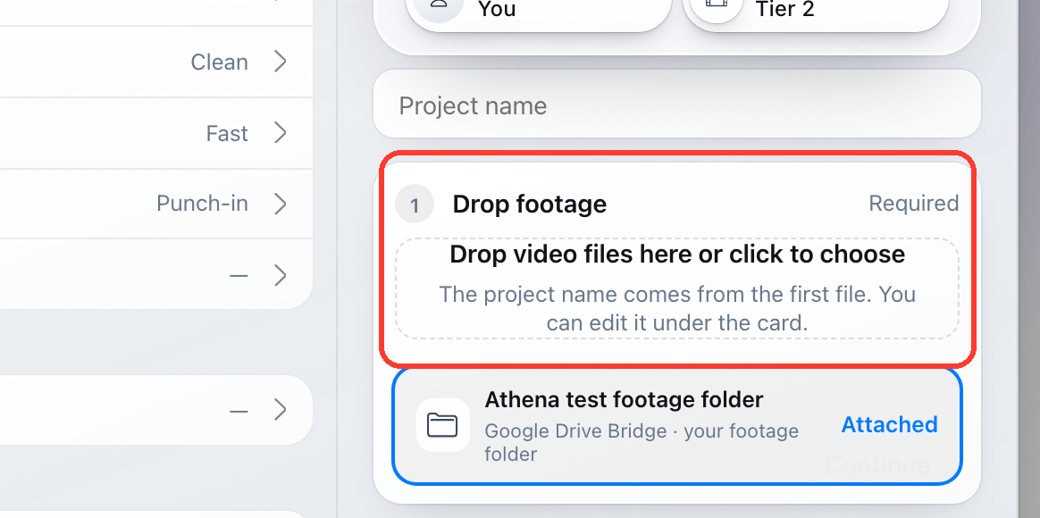
The request form: Drop footage (required) and your connected footage folder.
Drop footage: drag your videos in, or use your connected footage folder.
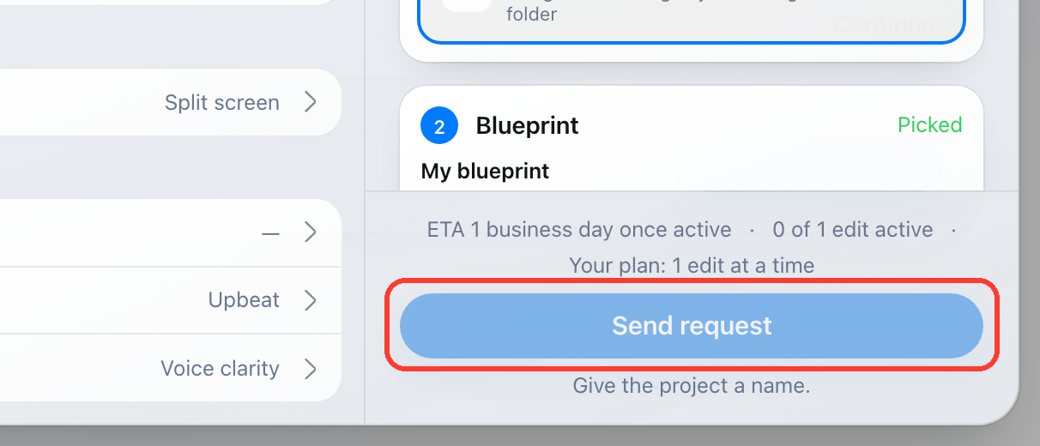
Send request: it lights up once the project has footage and a name.
Footage is required: every project starts from your footage, and nothing starts without it. Links typed into Notes are removed, so send footage as files or through your footage folder.
#

Which tier should I pick?

What each tier includes.

Tier 1
Clean, tight and ready to post. Dead space, pauses and mistakes cut; the strongest hook up front; captions; color grade and balanced audio. Not included: B-roll, music, sound effects or graphics.
Tier 2
Everything in Tier 1, plus light polish. B-roll and stock footage; images, PNGs and overlays; background music and light sound effects; light transitions. Not included: custom animations or custom graphics.
Tier 3
Everything in Tier 2, heavy and fully custom. Custom B-roll and custom graphics; heavy custom and title animations; heavy custom transitions; heavy sound effects.
No tier includes intros or outros. New requests start on Tier 2; pick the tier per project.
Edit tier: pick Tier 1, 2 or 3 for this project.
#

Lengths and formats

Short form, long form and every aspect ratio.

Short form
Under 1 min · 1–2m · 2–3m
Long form
3–15m · 15–30m · 30–45m · 45–60m
Format
9:16 Vertical · 4:5 Portrait · 1:1 Square · 4:3 Standard · 16:9 Horizontal

Short form is anything under 3 minutes. Pick the length you want the finished video to be, not the length of your footage.

#

How long does an edit take?

Business days by tier and length.

Your ETA is counted in business days (Monday to Friday) from the day editing starts:

TierShort form (under 3 minutes)Long form (per 15 minutes started)
Tier 11 business day1 business day
Tier 21 business day2 business days
Tier 32 business days4 business days

Example: a 20-minute Tier 2 video is two 15-minute blocks, so 4 business days. A 45-second Tier 3 short is 2 business days. Each project shows its due date once it is active.

If every slot on your plan is busy, the ETA counts from when the next slot frees up.
#

How many edits can I have at once?

Your plan sets how many are worked on together.

PlanEdits worked on at onceNotes
Starter1
Growth2
Scale3Your edits go first
Free trial1One edit, under 1 minute

Send as many requests as you like. Anything over your plan waits in Queue and starts by itself as soon as a draft is delivered to you. Once a draft is in your hands for review, its slot is free for the next one.

Revisions are unlimited on every plan and never use an extra slot.
#

Tips for a great first edit

What helps your editor nail it the first time.

  • Send the full raw footage, not a pre-cut version, unless you only want that part used.
  • Use your blueprint's Notes for what to avoid: words, styles or moments you never want.
  • Add 1 to 5 YouTube reference videos that look like what you want.
  • Use Notes for anything specific to this video: a guest's name, a product to show, a call to action.
  • Book a Creative Review Call after your first edits come back, to lock in your style.

Your blueprint

Tell us your style once. Every edit starts from it.

#

What is a blueprint?

Your style guide, read before every edit.

Your blueprint is your style guide: how your videos should look, sound and feel. Your editor reads it before every edit, so you never explain your style twice. It covers 23 questions:

Short or longFinal lengthFormatHookPausesCut speedCaptionsCaption sizeCaption highlightCaption placementZooms & reframingB-rollGraphics styleTransition styleSound effectsMusicMusic levelAudio mixColorOutro / CTAThings to avoidReference videoDetails

"No preference" is always fine: your editor then picks what fits each video.

#

Build or change your blueprint

Pick an answer per question, then save.

  1. Open FrameLab › Blueprints and press Open the builder (or Change it in the blueprint builder inside a request).
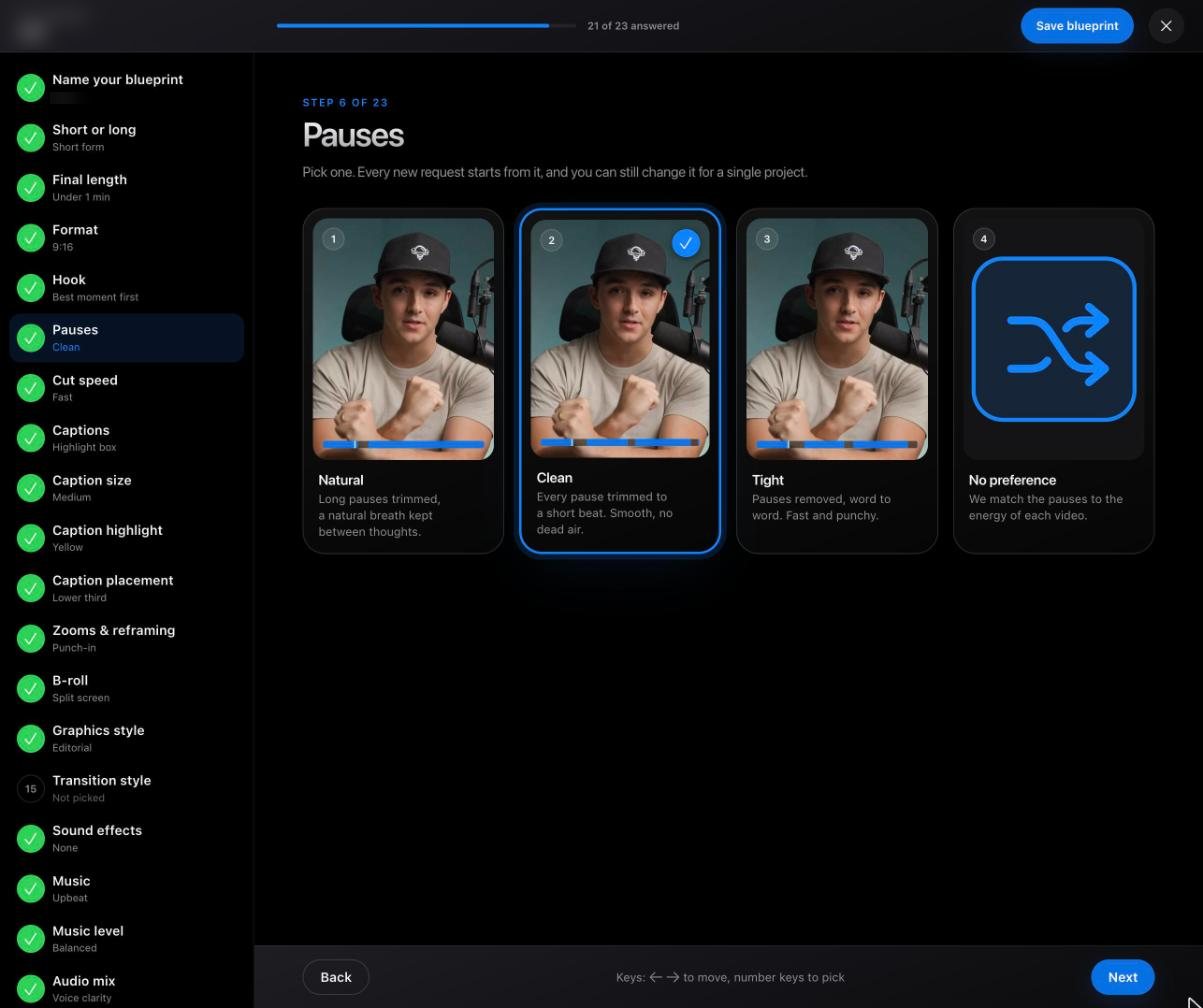
  2. Name your blueprint, then answer each question. Every answer shows a preview. Use Next, Back or Skip; on a keyboard the arrow keys move and number keys pick.
  3. Add up to 5 YouTube reference videos and any notes. Type them, or press Talk your notes and say them, then Clean up to tidy them.
  4. Press Save blueprint. You see "Blueprint saved".
The blueprint builder: every question on the left, a preview of each answer on the right.
#

Change the style for one project only

Your saved blueprint stays as it was.

Inside a request, change any answer. The studio marks it, for example "2 changed for this project", and only that project uses the changes.

Before you send, check the Blueprint block in the request. Want the change for every future project? Change it in the builder and save.
#

What the answers look like

Every question shows real examples.

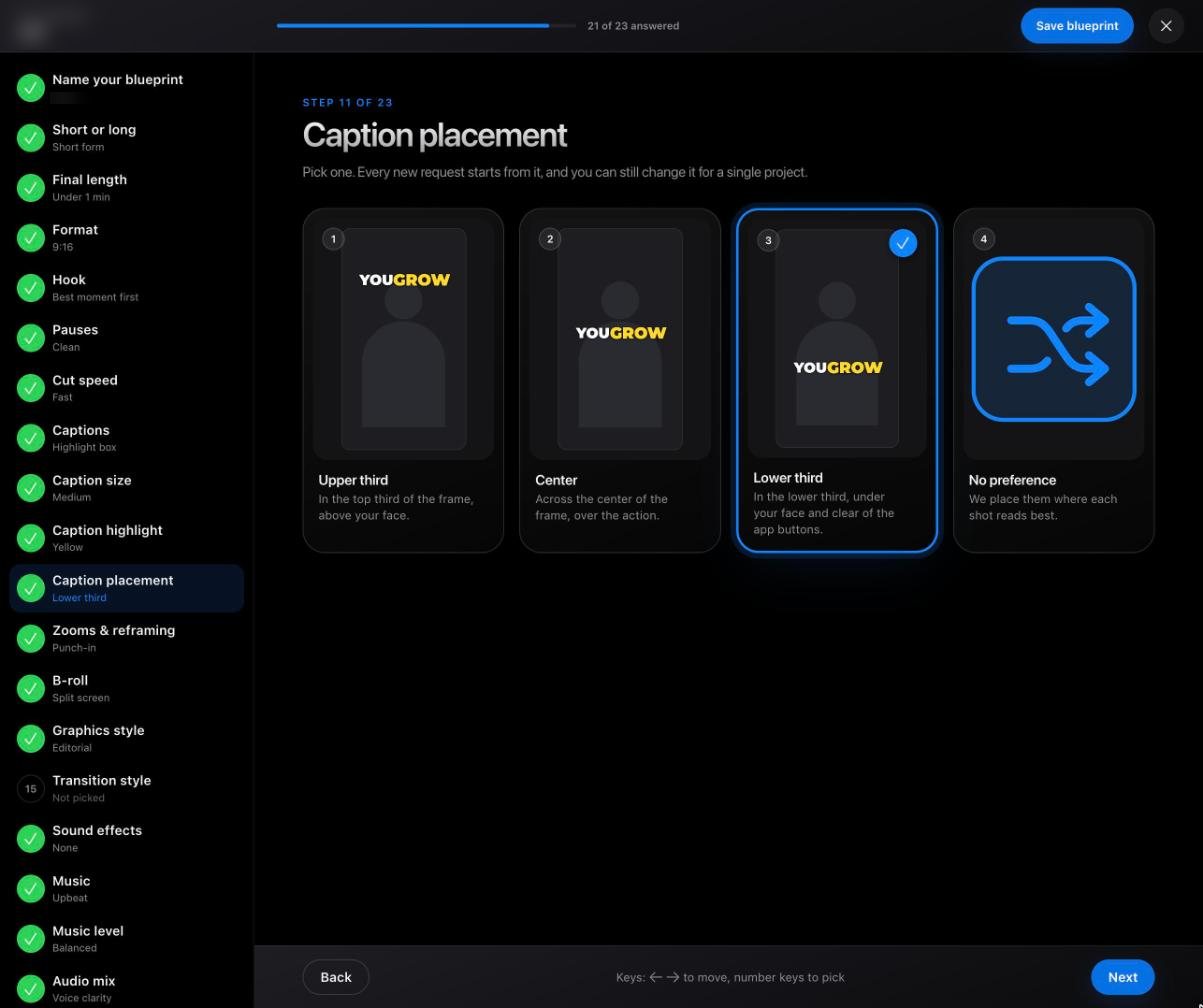
Caption placement: upper third, center, lower third, or no preference.

Previews show the actual effect: pause lengths, cut speeds, caption styles and placement, zooms, B-roll layouts, transitions and color looks. Sound effects, music and audio mix are picked by name.

Following your projects

Where each edit is, and what we tell you.

#

What do the project stages mean?

Queue, Active, Client Review, Revisions, Approved.

Queue
We have your request. It starts as soon as its footage is in and a slot on your plan is free.
Active
Your editor is working on it. The team checks every draft before you see it.
Client Review
Your draft is ready for you to watch.
Revisions
You asked for changes. Your editor is making them.
Approved
Done. Your files are ready to download.
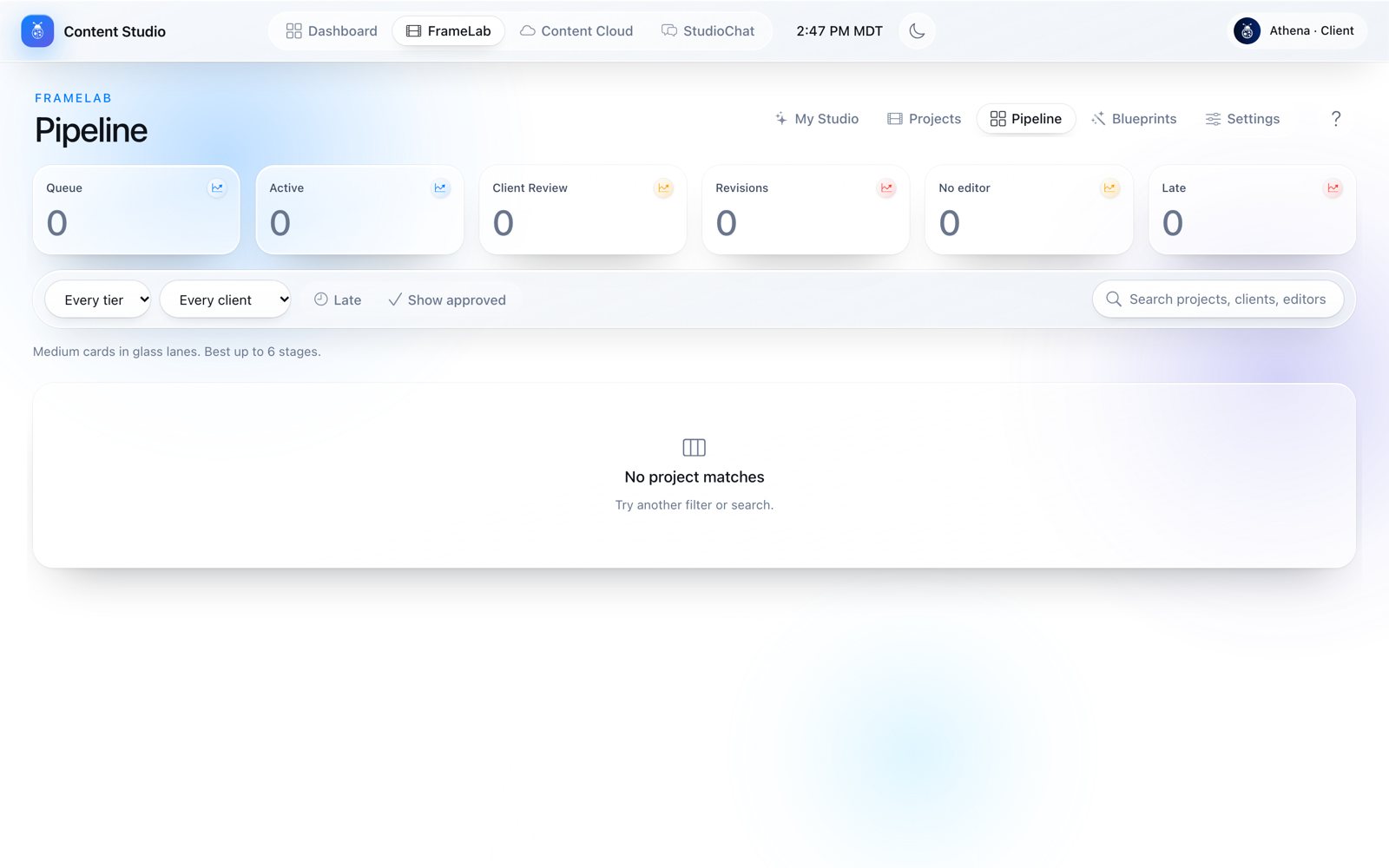
FrameLab › Pipeline: your projects by stage.
#

Where do I see my projects?

Dashboard, Projects, Pipeline and My Studio.

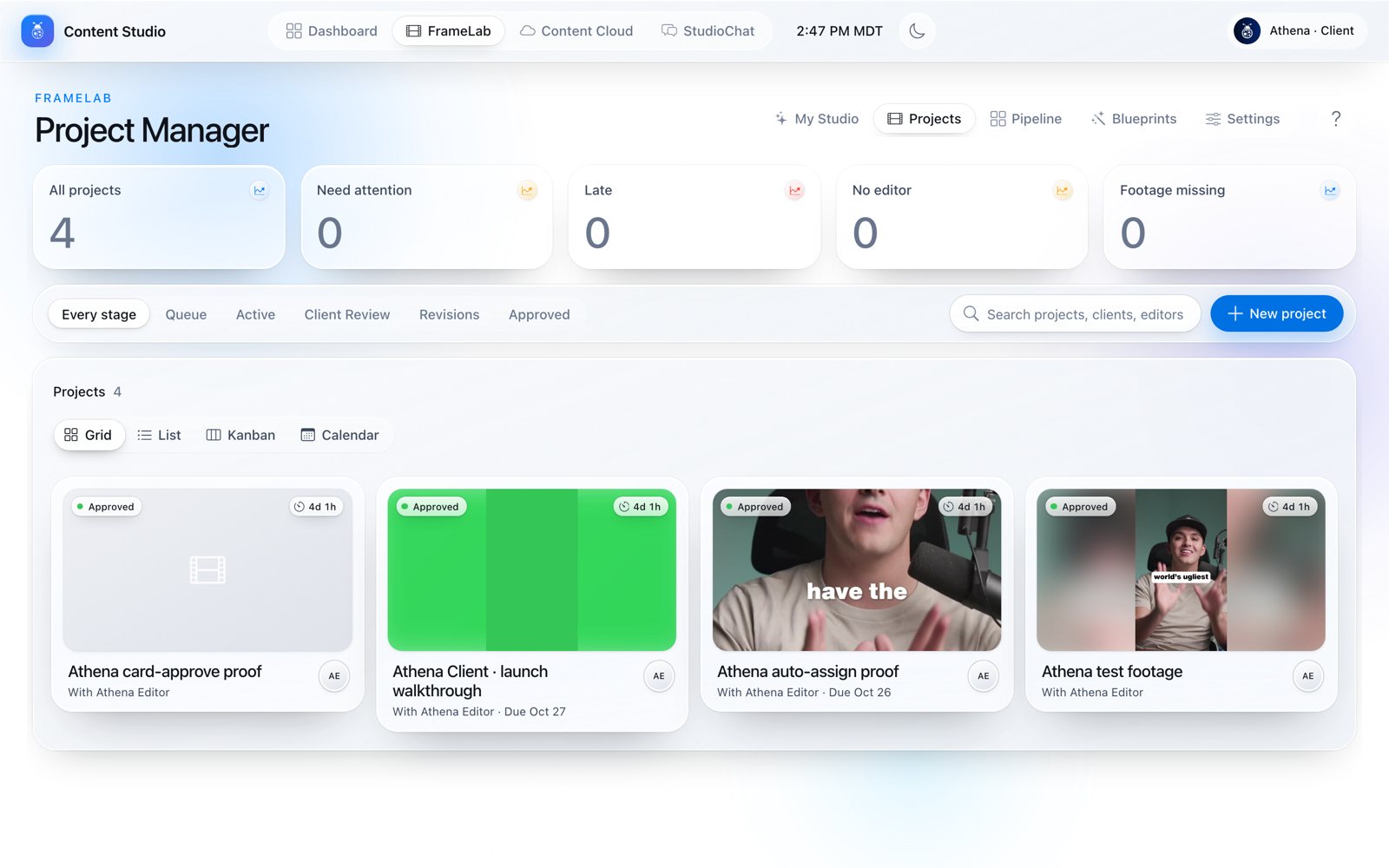
FrameLab › Projects: every project, with tiles for what needs attention.
Switch views: Grid, List, Kanban or Calendar.
  • Dashboard: what is ready for you, everything being edited and what is finished.
  • FrameLab › Projects: every project as a Grid, List, Kanban board or Calendar, filtered by stage, with tiles for All projects, Need attention, Late, No editor and Footage missing.
  • FrameLab › Pipeline: your projects by stage.
  • Search finds any project by name.
#

What emails and texts will I get?

Every message, and how to turn them off.

WhenYou get
We receive your requestEmail and text
Your editor startsEmail and text (the first start)
Your draft is readyEmail, text and a StudioChat message
A draft waits for you 2 daysA friendly email reminder
You ask for changesEmail and text confirming we have them
You approveEmail and text: your files are ready to download
A request has no footageAn email asking for it
Texts only go out between 9 AM and 7 PM in your time zone, never more than 3 a day. Turn texts or emails off in My Studio › Account Settings. There is no notification bell: you hear by email, text and StudioChat.

Reviewing and approving

Watch, leave notes on the exact moment, approve.

#

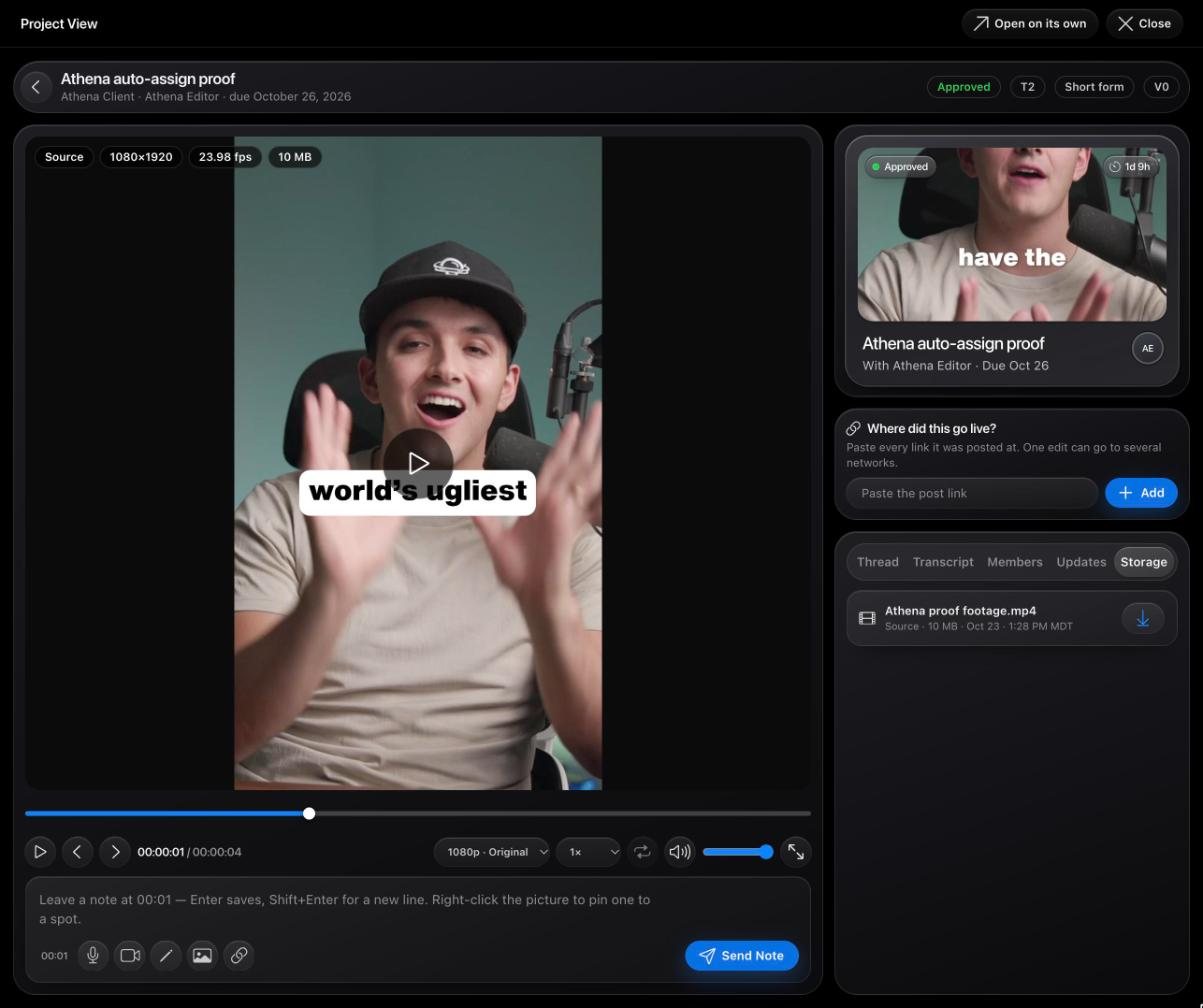
How do I review a draft?

Notes pinned to the exact second.

  1. Tap the project card in the email or text, or open the project in FrameLab.
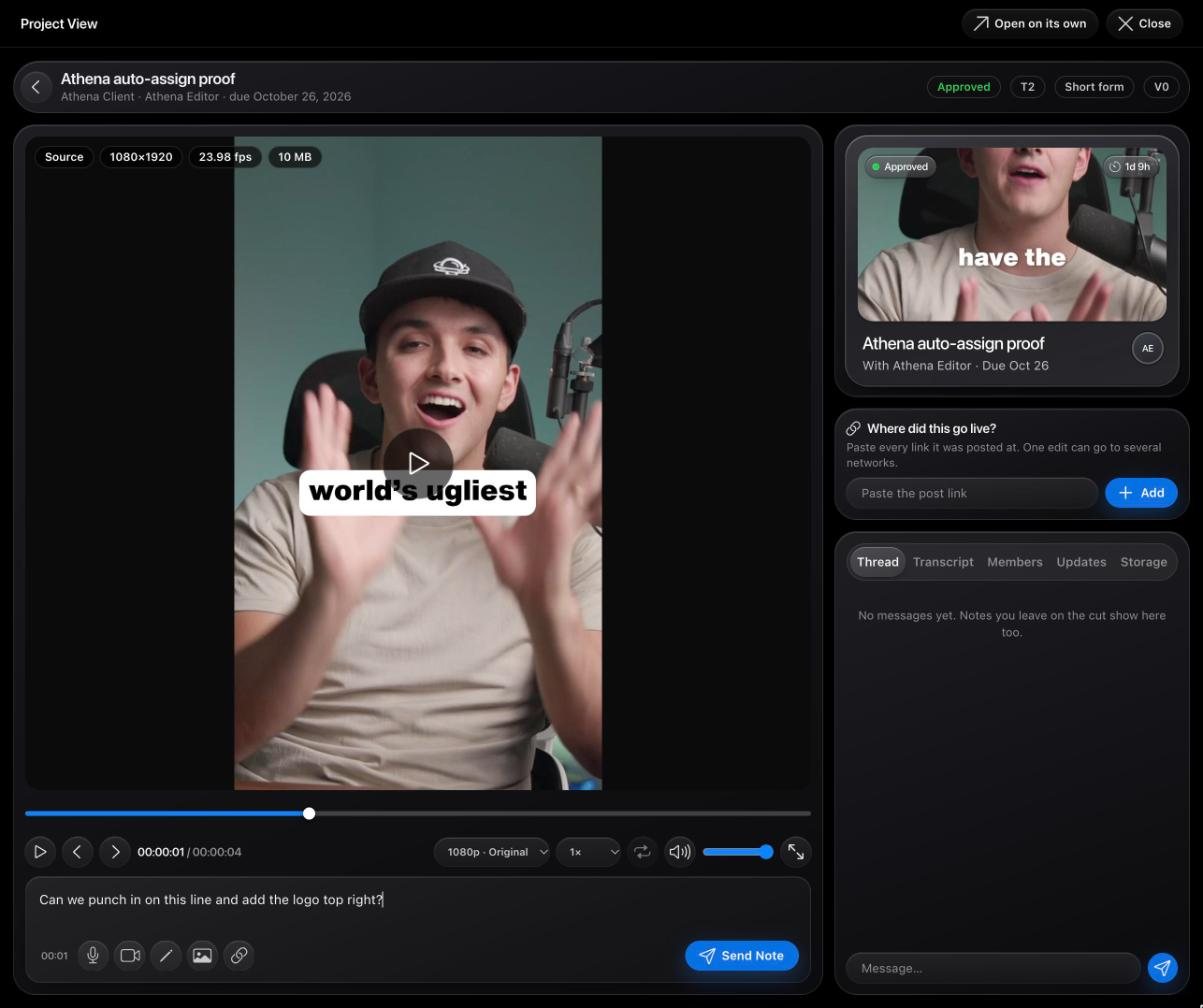
  2. Watch the draft. To ask for a change, pause on the moment and type your note. Enter saves it; Shift+Enter starts a new line.
  3. Leave as many notes as you like, then press Request changes and Send to the editor. All your notes go as one round.
Pause, type your note, and it is pinned to that moment (00:01 here).
#

Voice notes, drawings and more

Every way to show what you mean.

Under the note box you can:

  • Record a voice note or a video note (up to 60 seconds each).
  • Draw on this frame to circle exactly what you mean.
  • Save this frame as a picture.
  • Right-click the picture to pin a note to a spot on screen.
  • Copy a link to this moment to share it with your team.
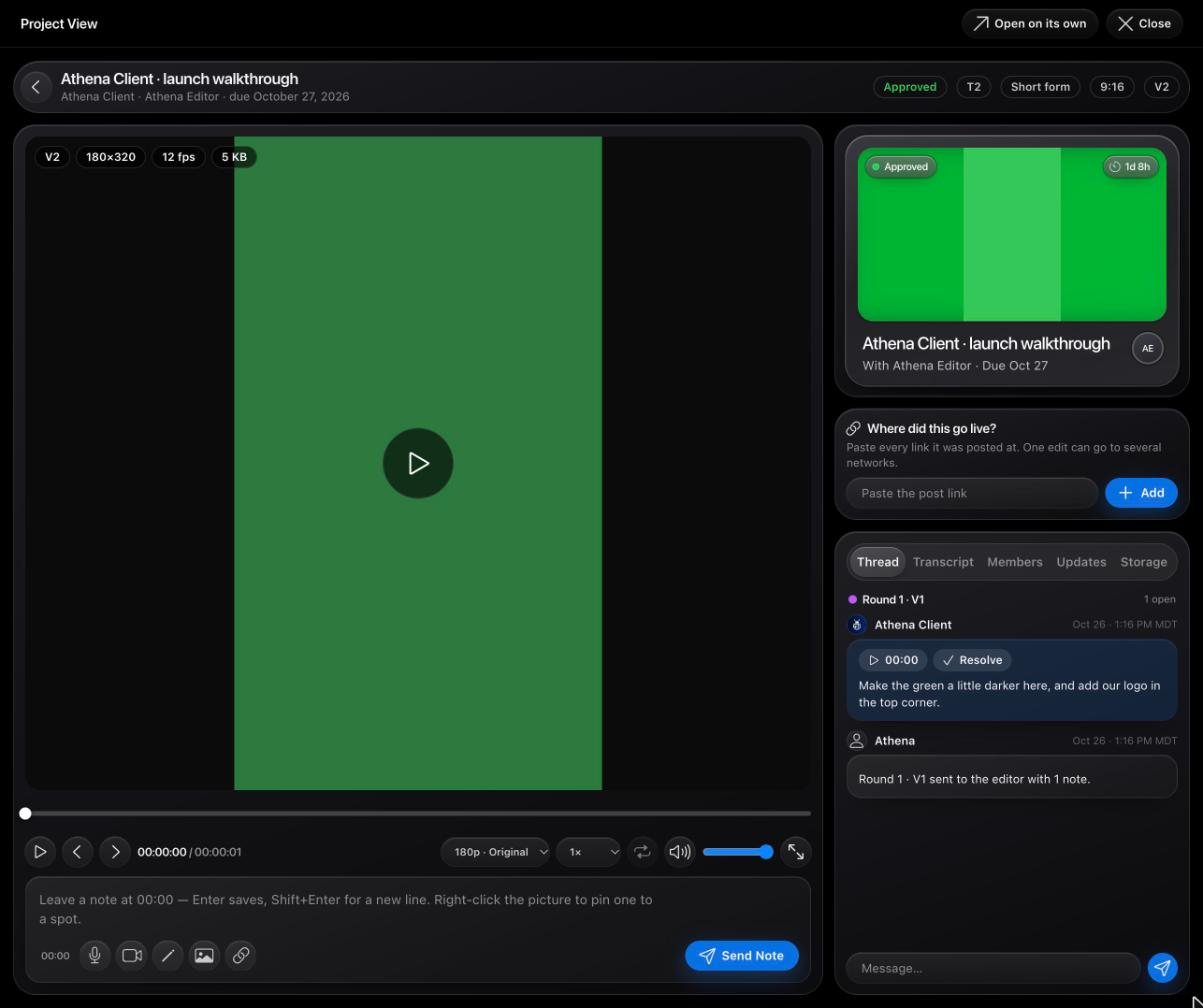
Your notes in the thread, each with its time code, grouped by round.
#

How do I approve?

Pick your stars, and your files unlock.

  1. Press Approve at the top of the project.
  2. The sheet "Approve this cut" asks how the edit was. Pick 1 to 5 stars; Approve stays grey until you pick.
  3. Confirm. You see "Approved. Thank you." and your files unlock.
Approving closes the project. Want something else later? Start a new request.
#

Where are my final files?

Storage on the project, and Content Cloud.

Project › Storage: every file on the project, with a download arrow.

Open the project and go to Storage. Your files are also in Content Cloud, with the files from all your projects.

The finished edit unlocks once you rate it (when you approve). Until then the button says Rate to download. Your own footage is always downloadable.
#

Are revisions really unlimited?

Yes, on every plan.

Ask for changes until it is right. Revisions never cost extra and never use an extra slot.

Put every change in one round, so your editor does them all at once and you get the new version sooner.
#

Where did this go live?

Tell us where you posted it.

Once a project is approved, it asks "Where did this go live?". Paste each link (one video can go to several networks) and press Add. If the studio already found the post, press This is it. We use it to see how your videos perform.

Files and Content Cloud

Your footage and finished edits, in one place.

#

What is in Content Cloud?

Every file, every folder, searchable.

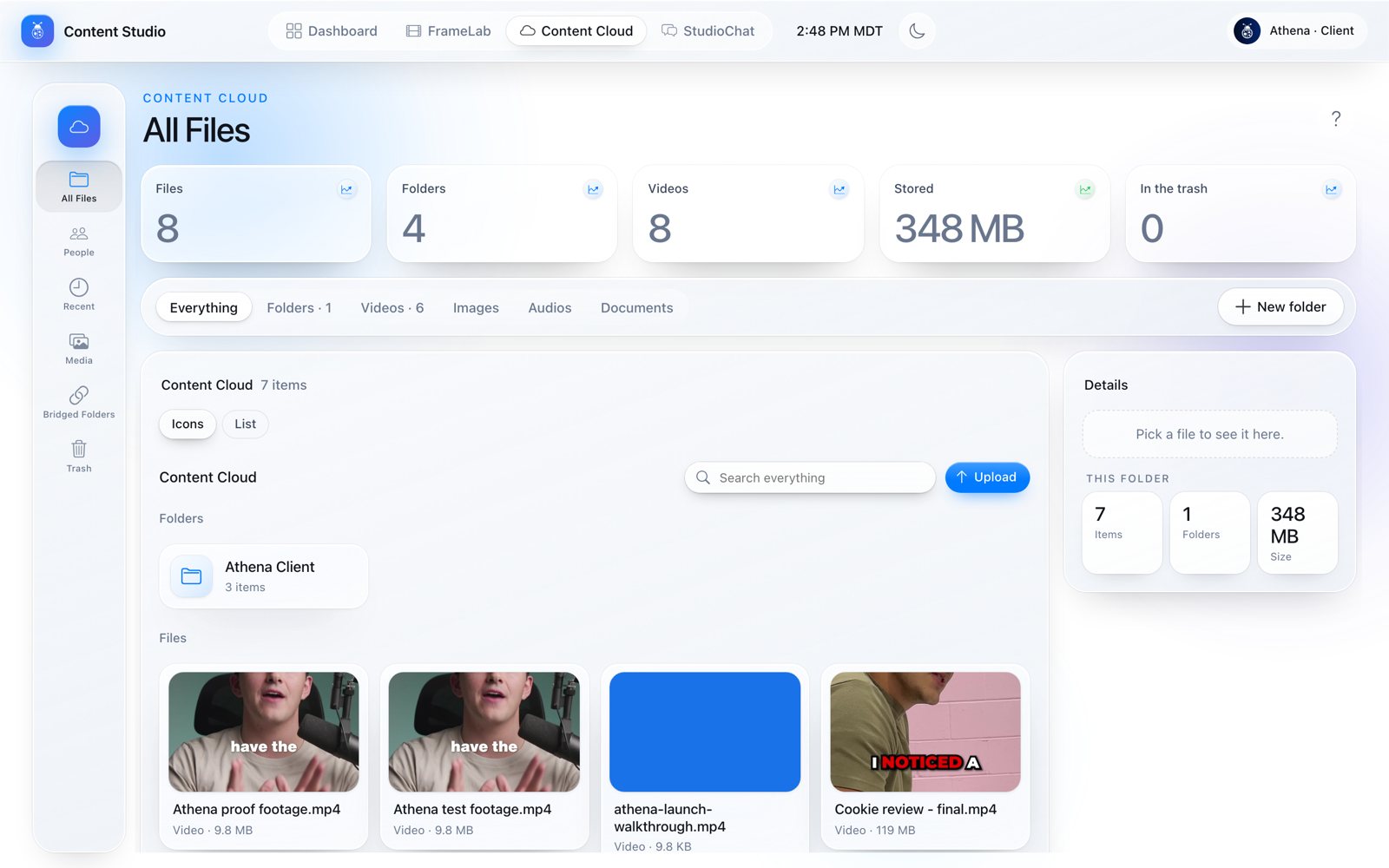
Content Cloud › All Files: your folders and files, with Upload and New folder.
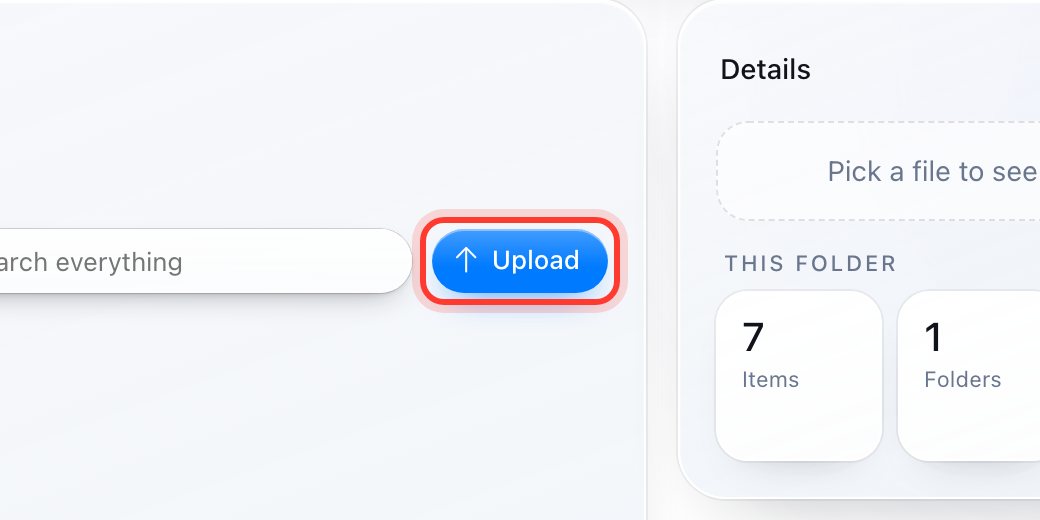
Upload adds files to the folder you are in.
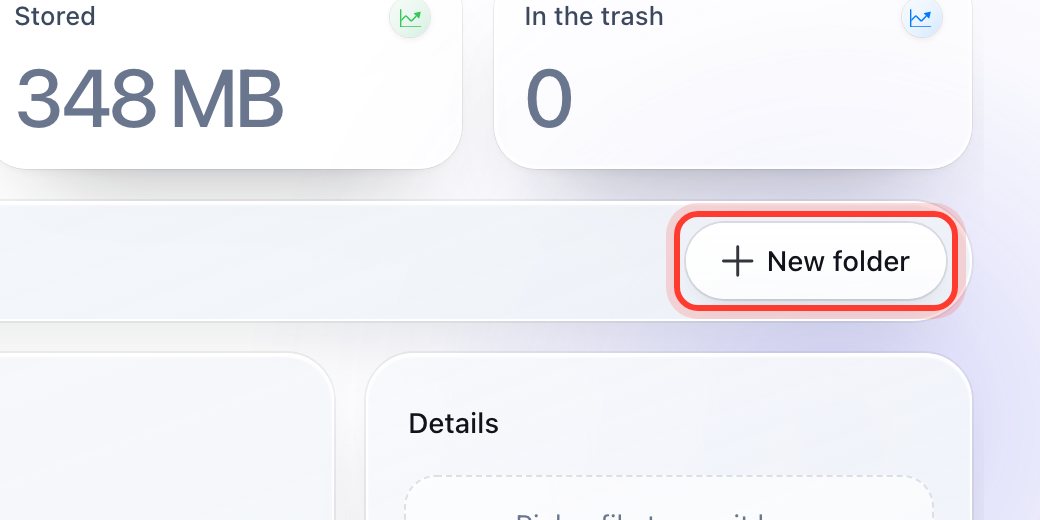
New folder keeps your files in order.
All Files
Your folders and files. Press New folder or Upload; switch between Icons and List.
Recent
Your newest files.
Media
Your videos and pictures.
Bridged Folders
Your connected Google Drive or Dropbox footage folder.
Trash
Deleted files, kept for 24 hours.

The tiles at the top count files, folders, videos, storage used and what is in the trash. Filter by Folders, Videos, Images, Audios or Documents, or search everything.

#

Rename or delete a file

Click any file you uploaded.

Click a file you uploaded: its details open on the right, with Rename and Move to Trash. Files someone else added, and locked files, can't be changed.

Trash keeps a file for 24 hours, then deletes it for good. Changed your mind? Open Trash and press Put back.
#

Connect a Google Drive or Dropbox folder

One footage folder per person.

You can connect one footage folder during your first setup. Share it so anyone with the link can view it, and paste the folder's link (not a single file). To change it, remove the old one in Content Cloud › Bridged Folders, then message us and we connect the new one.

StudioChat

Talk to your team.

#

Who can I message?

Your own channel and your project threads.

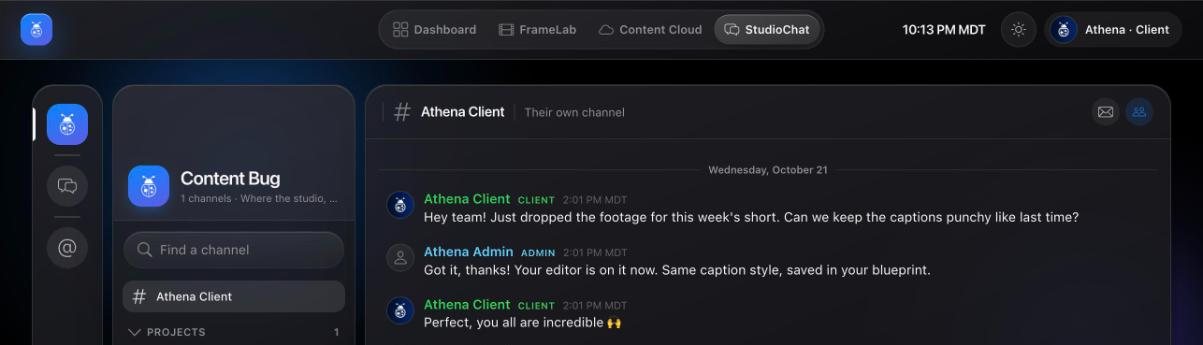
StudioChat: your own channel with the Content Bug team.
Your channel
Your own private channel with the Content Bug team. Ask anything here.
Project threads
Under Projects: one thread per open project, shared with your editor. Keep it about that project.

You can send files and emoji in any chat, and voice notes in your own channel.

#

How fast will you reply?

Business hours, every weekday.

During business hours (Monday to Friday, 9 AM to 6 PM Mountain Time) we reply quickly. Messages sent at night or over the weekend are answered the next business day.

Account, plan and billing

Your details, your plan, your card.

#

Change my details

Name, phone, time zone, business and brand.

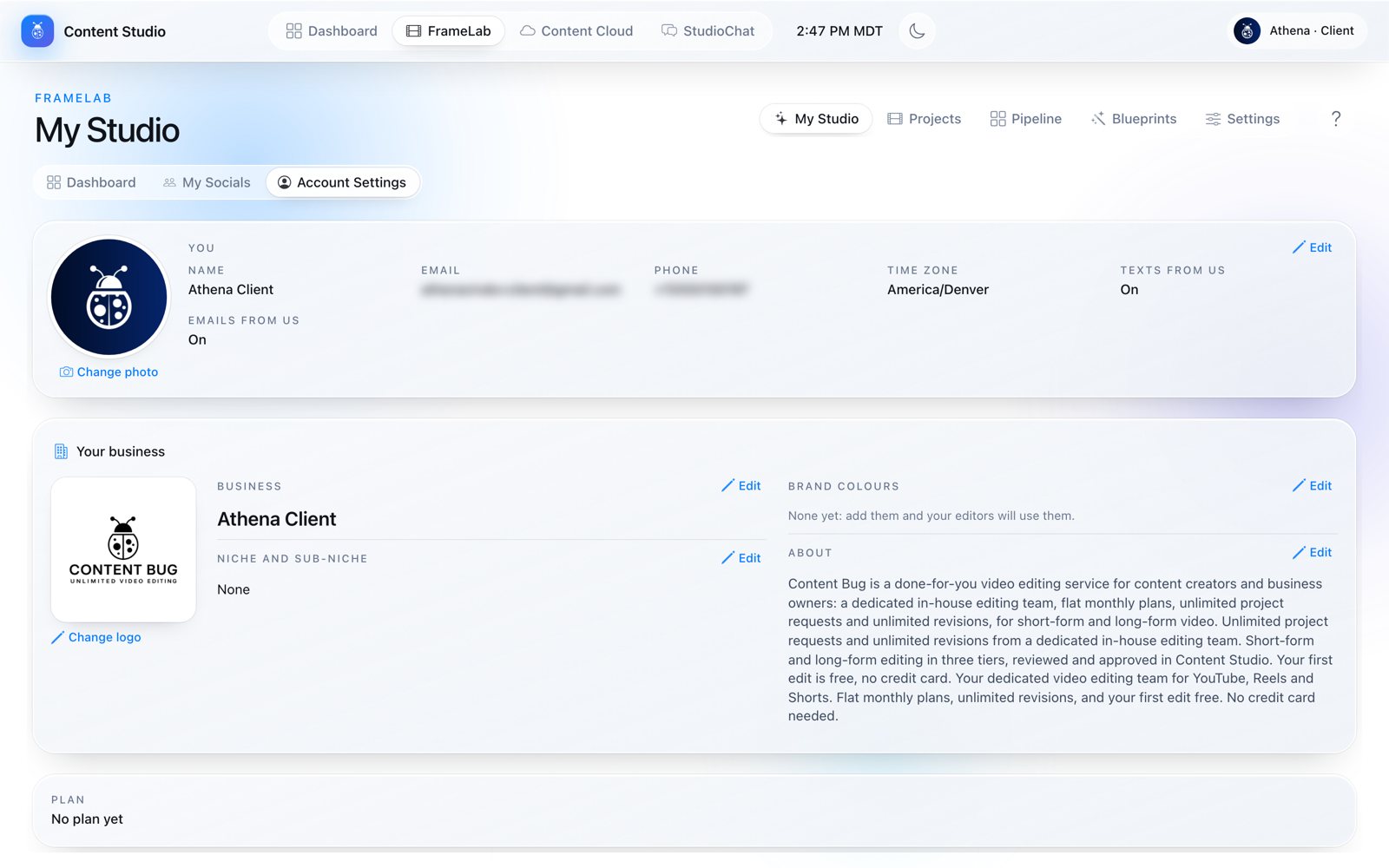
My Studio › Account Settings: you, your business and your plan.
You
Name, email, phone, time zone, and Texts from us / Emails from us on or off. Change photo for your picture.
Your business
Logo, business name, niche and sub-niche, brand colours and about. Your editors use your brand colours.
Plan
Your plan and its renewal date.
Photos and logos are PNG or JPEG, under 2 MB.
#

Add my social profiles

So your editor can match your style.

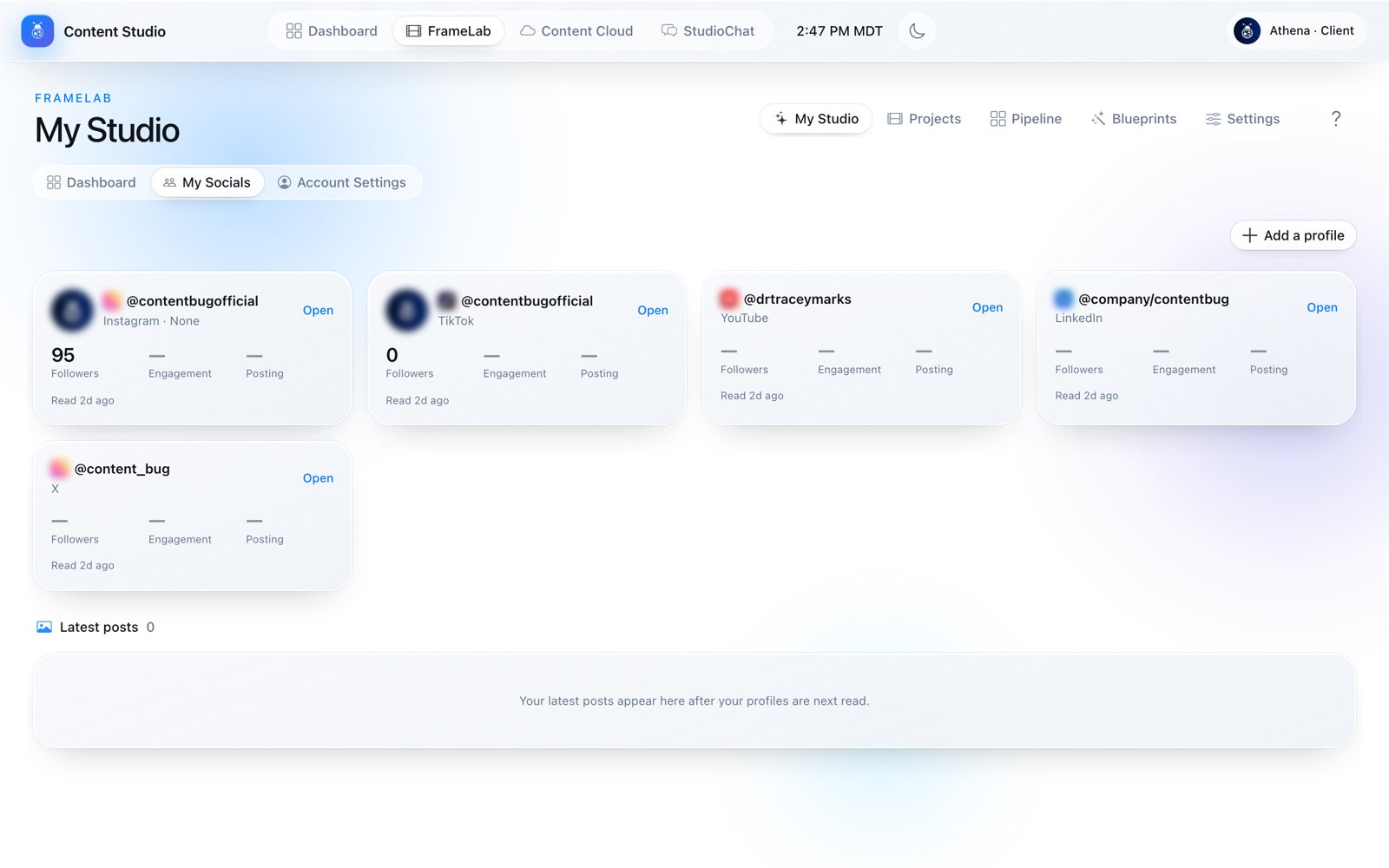
My Studio › My Socials: every profile, with followers, engagement and posting.

Open FrameLab › My Studio › My Socials and press Add a profile. If we cannot find it automatically, press It's mine, add it. Profiles are read again from time to time, and your latest posts show underneath.

#

Change, pause or cancel my plan

Message us and we take care of it.

Message us in StudioChat or email contentbug@contentbug.io and we take care of it. Plans are on our pricing page.

If you cancel, you keep your studio until your paid time ends, and your projects and files stay put.
#

Update my card, or a payment failed

We handle billing for you.

Message us in StudioChat or email us and we take care of it. Billing is handled by our team, so there is nothing for you to manage yourself.

Troubleshooting

What a message means and what to do.

#

My sign-in code does not work

Codes, expiry and too many tries.

You seeDo this
"That code isn't right. Try again."Use the newest email: only the latest code works.
"That code expired."Codes last 15 minutes. Press Send a new one or Resend code (it opens 30 seconds after the last one).
"Too many tries. Wait a few minutes, then try again."Wait a few minutes, then try again.
"Your Content Studio access is turned off, so no code was sent."Email contentbug@contentbug.io and we turn it back on.
No email at allCheck spam and promotions, and make sure it is the email we have for you.
#

My upload failed

Dropped connections and wrong files.

You seeDo this
"… did not upload (The upload was interrupted). Nothing was sent: try again."Your connection dropped. Press Send request again: files that already arrived are not uploaded twice.
"… is not a video and was left out"Only video files can be footage.
"… has not finished uploading"Wait for it, or upload it again, then send.
"… is already on another project."Each file belongs to one project. Upload a copy for the new one.
"… arrived incomplete"Upload it again.
#

I cannot send my request

Missing footage, name or trial limits.

You seeDo this
"Add your footage first"A request needs at least one video, or your Google Drive Bridge.
"Give the project a name."Type a name under the footage card.
"Your free trial covers one edit."Pick a plan to send more projects.
"Your free trial edit is under one minute."Pick "Under 1 min" as the length.
#

My project is not starting

Footage or slots.

You seeWhy
It shows under Footage missingIt has no video yet, so it cannot start. Message us in your channel and we help you add it.
It sits in QueueAll your plan's edits are in progress. It starts by itself when a draft is delivered to you.
#

I cannot approve or download

Review buttons and rating.

You seeDo this
"There is no draft waiting for review yet."Approve and Request changes appear once your draft is in Client Review.
"There are no open notes on this cut."Leave your notes on the video first, then press Request changes.
Rate to downloadApprove with a 1 to 5 rating to unlock the finished file.
"This browser cannot record here."Allow the microphone or camera for the site, or use Chrome or Safari.
#

A file or photo will not save

Size, type and trash.

You seeDo this
"That file is over 2 MB."Use a smaller PNG or JPEG.
"That file is in Trash."Open Trash and press Put back.
"You already have a footage folder"You can have one. Remove the old one in Content Cloud › Bridged Folders first.
"Dropbox did not open that link."Share the folder so anyone with the link can view it.